Support
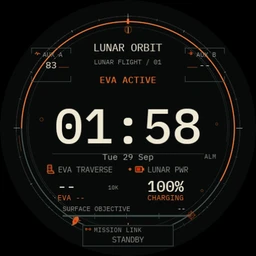
Void Mission: Space Watch Face
Need help with Void Mission: Space Watch Face? Start with the answers below — if none of them solve it, contact AgileConqueror support directly and we will take a look.
- Android
General troubleshooting
Install the latest version
Open Google Play on your watch or phone and install any pending update to the watch face.
Select the watch face again
Touch and hold the current watch face, switch to a different one, then switch back. This reloads the face and its settings.
Restart the watch
Most watches restart from Settings → System → Restart, or by holding the side button.
Check the complication source
Data inside a complication — weather, steps, events — is supplied by another app on the watch. If one shows nothing, open that app, or choose a different source in Customize.
Check Always-on display
The dimmed ambient view only appears when Always-on screen is enabled in the watch’s Display settings.
Update Wear OS
Install pending system updates, usually found under Settings → System on the watch.
Reporting a problem
The more of the following you can include, the faster a problem can be reproduced and fixed:
- the app name — Void Mission: Space Watch Face
- your watch model
- your Wear OS version
- the watch face version
- what happened, and what you expected instead
- the steps that lead to it, if it happens repeatedly
- a screenshot or screen recording, where it helps
The Contact Support button on this page opens an email with these fields already laid out.
Finding your app and device details
On the watch, the watch face version is under Settings → Apps → Void Mission: Space Watch Face, and the watch model and Wear OS version are under Settings → System → About. Menu names differ slightly between watch makers.
Reinstalling
Reinstalling Void Mission: Space Watch Face replaces damaged files, but its customisation — palette, layout and complication choices — returns to the defaults. Try the steps above first, and get in touch before reinstalling if you are unsure.
Contact support
Opens an email to AgileConqueror with the app, device and version fields already laid out.
Contact Supportagileconqueror@gmail.com
Store listings
Update the app, check the current version, or leave a review.